이 글은 Apple Human Interface Guidelines를 참고하여 작성하였습니다.
작성자 : 안동현
Navigation
People tend to be unaware of an app’s navigation until it doesn’t meet their expectations. Your job is to implement navigation in a way that supports the structure and purpose of your app without calling attention to itself. Navigation should feel natural and familiar, and shouldn’t dominate the interface or draw focus away from content. In iOS, there are three main styles of navigation.
사용자들은 앱의 네비게이션이 기대에 부응만 잘 한다면, 그 존재에 대해 잘 눈치채지 못합니다. 당신은 네비게이션이 그 자체로 주의를 끌지 않으면서, 앱의 목적과 구조를 잘 지지하도록 해야합니다. 네비게이션은 자연스럽고 친숙하게 느껴져야 하되 화면에 가장 중요한 특징이 되거나, 콘텐츠로부터 시선을 뺏도록 하지 말아야 합니다. iOS에는 세가지 주된 스타일의 네비게이션이 있습니다.
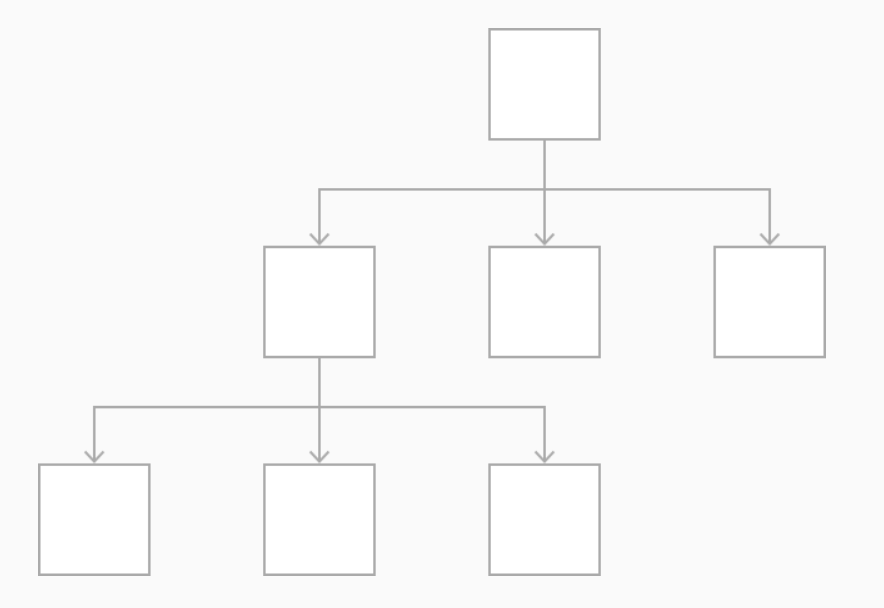
Hierarchical Navigation : 계층 구조형 네비게이션
Make one choice per screen until you reach a destination. To go to another destination, you must retrace your steps or start over from the beginning and make different choices. Settings and Mail use this navigation style.
목적지(화면)에 도달하기 위해 화면당 하나의 선택을 합니다. 다른 목적지로 가기 위해서는, 이전 단계를 되짚어 가야하거나 처음부터 시작해 다른 선택을 해야만 합니다. 설정이나 메일 (iOS 기본 앱을 말하는 듯 함) 에서 이러한 네비게이션 스타일을 사용합니다.
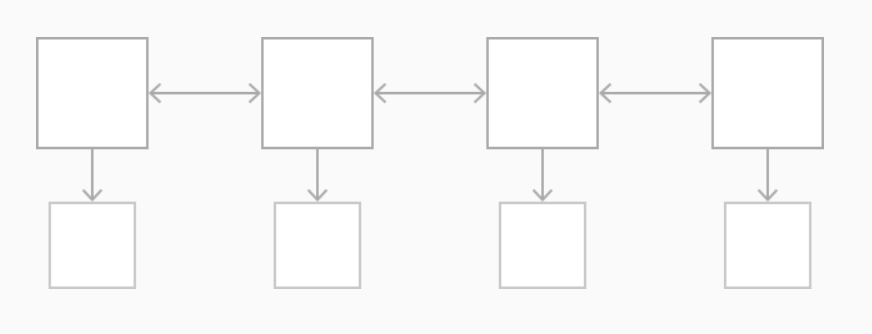
Flat Navigation : 플랫(평면) 네비게이션
Switch between multiple content categories. Music and App Store use this navigation style.
다수의 카테고리를 번갈아 전환합니다. 음악과 앱스토어에서 이러한 네비게이션 스타일을 사용합니다.
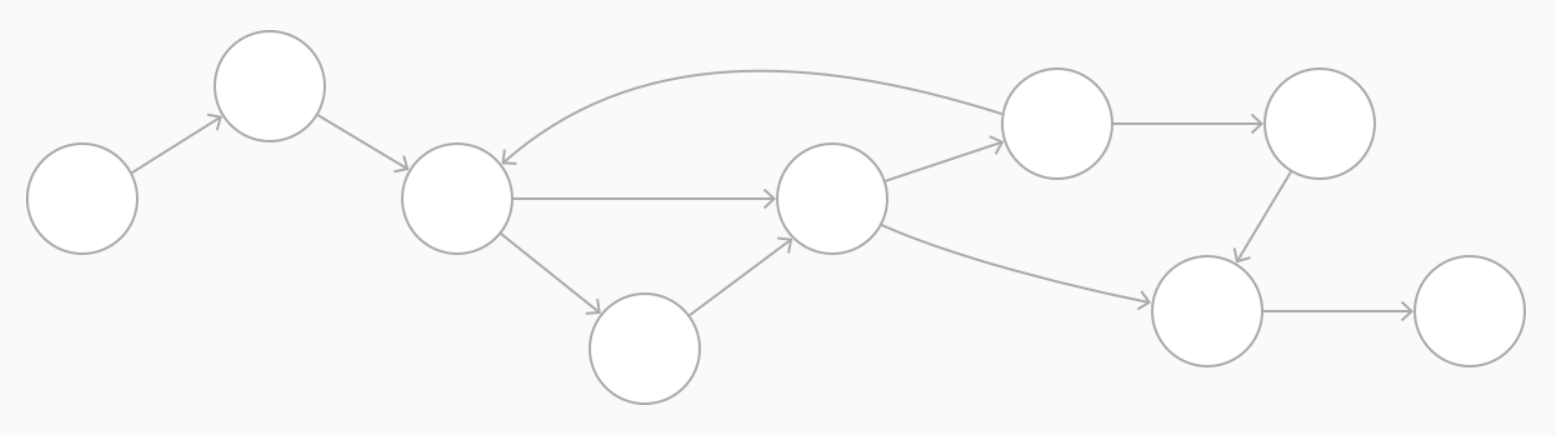
Content-Driven or Experience-Driven Navigation : 내용 혹은 경험 중심의 네비게이션
Move freely through content, or the content itself defines the navigation. Games, books, and other immersive apps generally use this navigation style.
콘텐츠 사이를 자유롭게 오가거나, 콘텐츠 그 자체가 네비게이션을 정의합니다. 게임, 책, 그리고 다른 몰입도 높은 앱들이 대게 이 네비게이션 스타일을 사용합니다.
Some apps combine multiple navigation styles. For example, an app that uses flat navigation may implement hierarchical navigation within each category.
몇몇 앱들은 여러개의 네비게이션 스타일을 혼합하기도 합니다. 예를 들어, 평면형 네비게이션을 사용하는 앱은 각각의 카테고리 안에 계층 구조형 네비게이션을 사용할 수도 있습니다.
Always provide a clear path. People should always know where they are in your app and how to get to their next destination. Regardless of navigation style, it’s essential that the path through content is logical, predictable, and easy to follow. In general, give people one path to each screen. If they need to see a screen in multiple contexts, consider using an action sheet, alert, popover, or modal view. To learn more, see Action Sheets, Alerts, Popovers, and Modality.
언제나 명확한 길을 제공하세요. 사용자들은 언제나 자신이 앱 안 어디에 있는지, 다음 목적지를 어떻게 가야할지 알아야 합니다. 네비게이션 스타일에 상관없이, 콘텐츠로 이동하는 길은 논리적이고, 예측가능해야하며, 따라가기 쉬워야 합니다. 대개의 경우, 사용자들에게 각 화면으로 가는 선택지를 한개씩 주세요. 만약 여러 맥락에서 한 화면을 보여줘야 한다면, action sheet, 알람, popover나 modal view를 사용하는 것을 고려해보세요. Action Sheets, Alerts, Popovers, Modality. 에서 더 자세히 배울 수 있습니다.
Design an information structure that makes it fast and easy to get to content. Organize your information structure in a way that requires a minimum number of taps, swipes, and screens.
내용을 빠르고 쉽게 얻을 수 있는 정보 구조를 설계하세요. 탭, 스와이프, 스크린의 갯수가 최소한으로 요구되도록 정보 구조를 체계화하세요.
Use touch gestures to create fluidity. Make it easy to move through your interface with minimum friction. For example, you could let people swipe from the side of the screen to return to the previous screen.
부드러움을 위한 터치 제스처를 사용하세요. 마찰을 최소화하며 화면을 이동할 수 있도록 하세요. 예를 들어, 이전 화면으로 돌아가기 위해 (별다른 버튼을 누르지 않아도) 화면 한쪽을 스와이프 하게 만들 수 있습니다.
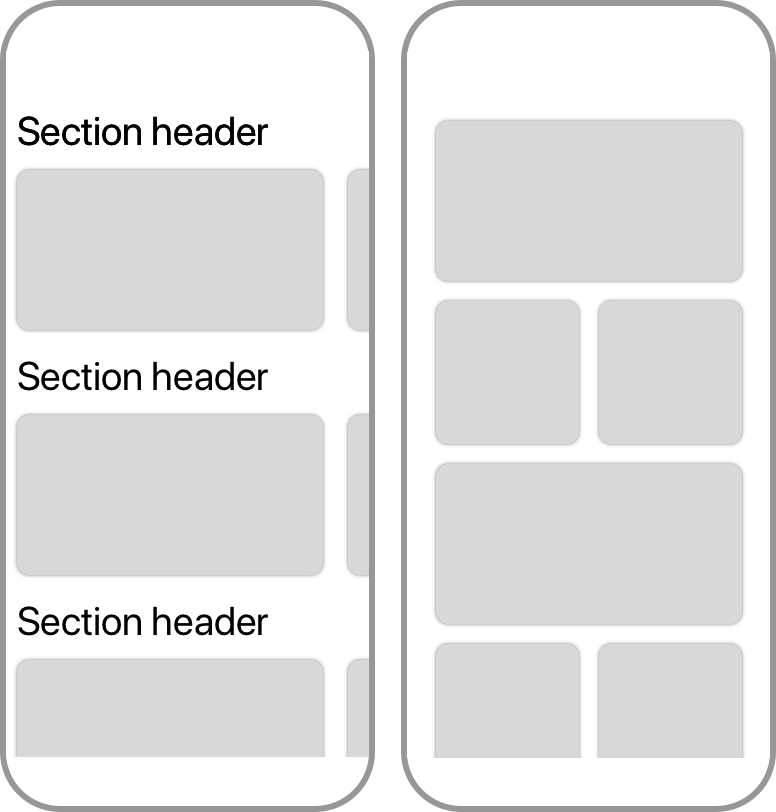
Use standard navigation components. Whenever possible, use standard navigation controls such as page controls, tab bars, segmented controls, table views, collection views, and split views. Users are already familiar with these controls, and will intuitively know how to get around your app.
일반적인 네비게이션 컴포넌트를 사용하세요. 가능하다면, 페이지 컨트롤이나, 탭 바, Segmented Control, table View, Collection View 그리고 split View 같은 일반적인 네이게이션 조작방식(컨트롤)을 사용하세요. 사용자들은 이미 이 조작방식(컨트롤)에 익숙하고, 당신의 앱에서도 어떻게 해야할지 직감적으로 알 것입니다.
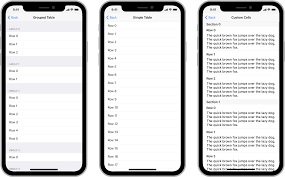
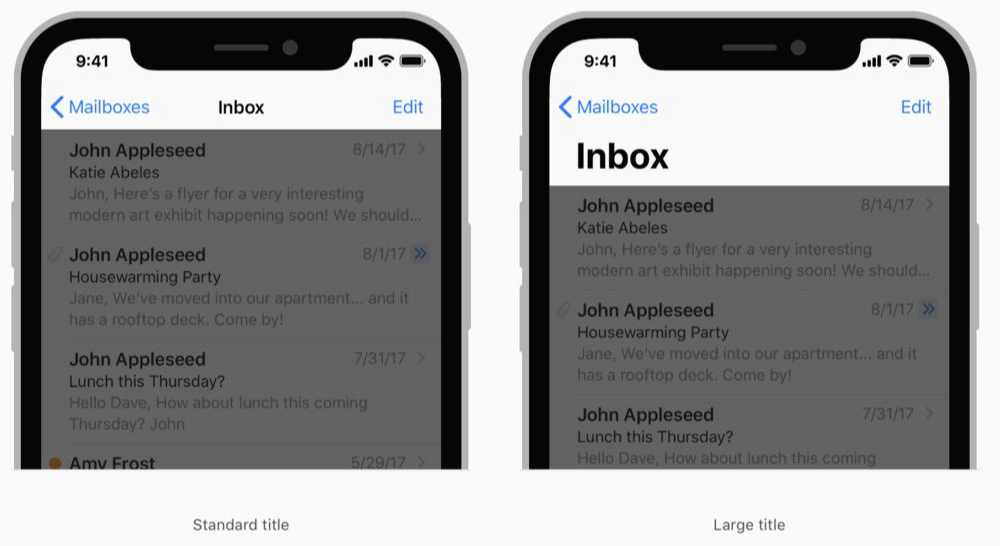
Use a navigation bar to traverse a hierarchy of data. The navigation bar’s title can show the current position in the hierarchy, and the back button makes it easy to return to the previous location. For specific guidance, see Navigation Bars.
데이터의 계층 구조를 가로지르도록 네비게이션 바를 사용하세요. 네비게이션 바의 제목은 계층 구조에서 현재 위치를 보여줄 수 있으며, 뒤로가기 버튼은 이전의 위치로 돌아가기 쉽게 합니다. 좀 더 자세한 가이드는 Navigation Bars 에서 확인하세요.
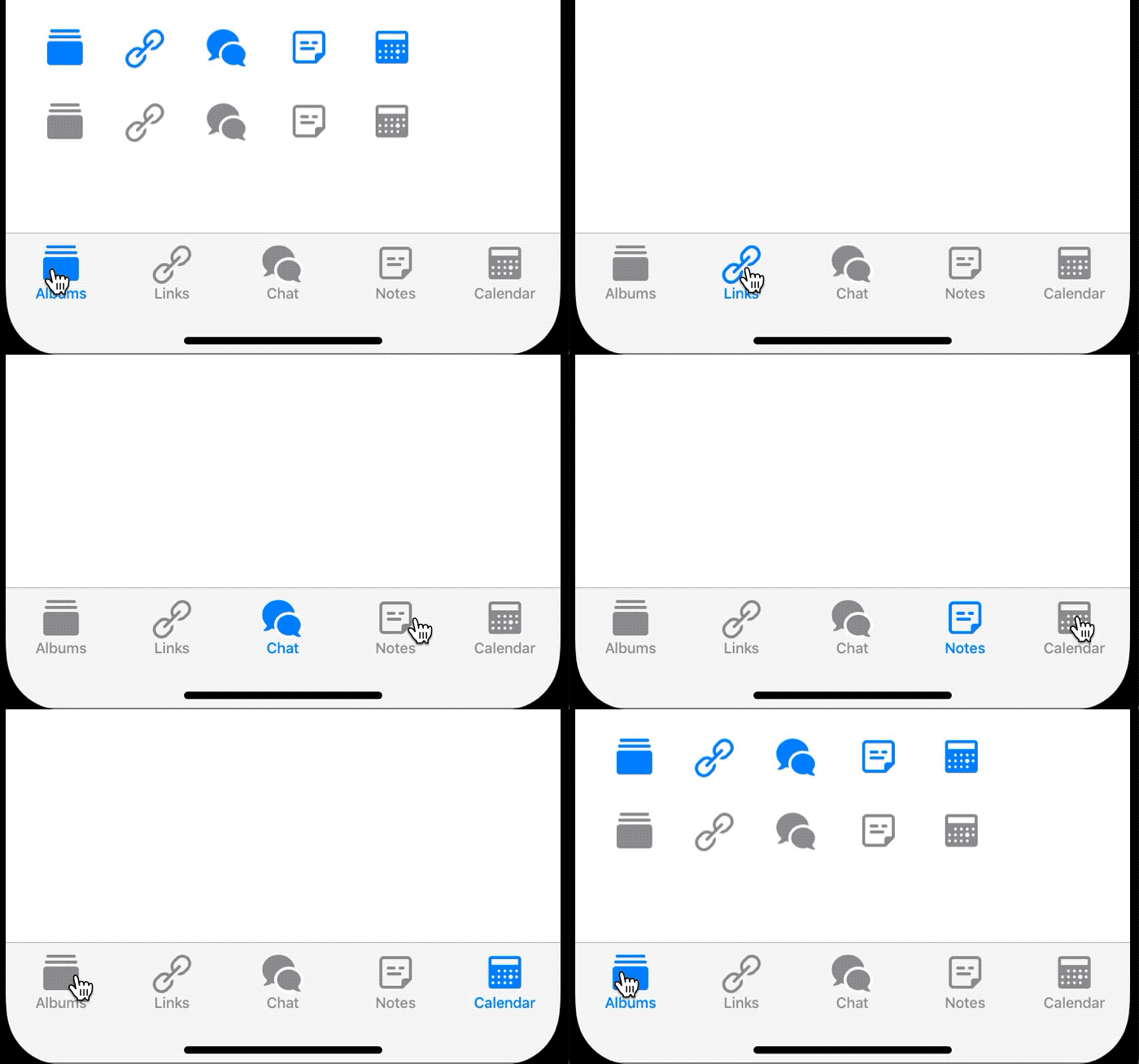
Use a tab bar to present peer categories of content or functionality. A tab bar lets people quickly and easily switch between categories, regardless of the current location. For specific guidance, see Tab Bars.
같은 위계의 카테고리나 기능을 보여주기 위해 탭 바를 사용하세요. 탭 바는 현재 위치에 상관없이, 사용자들이 더 빠르고 쉽게 카테고리 간을 이동할 수 있게 해줍니다. 좀 더 자세한 가이드는 Tab Bars 에서 확인하세요.
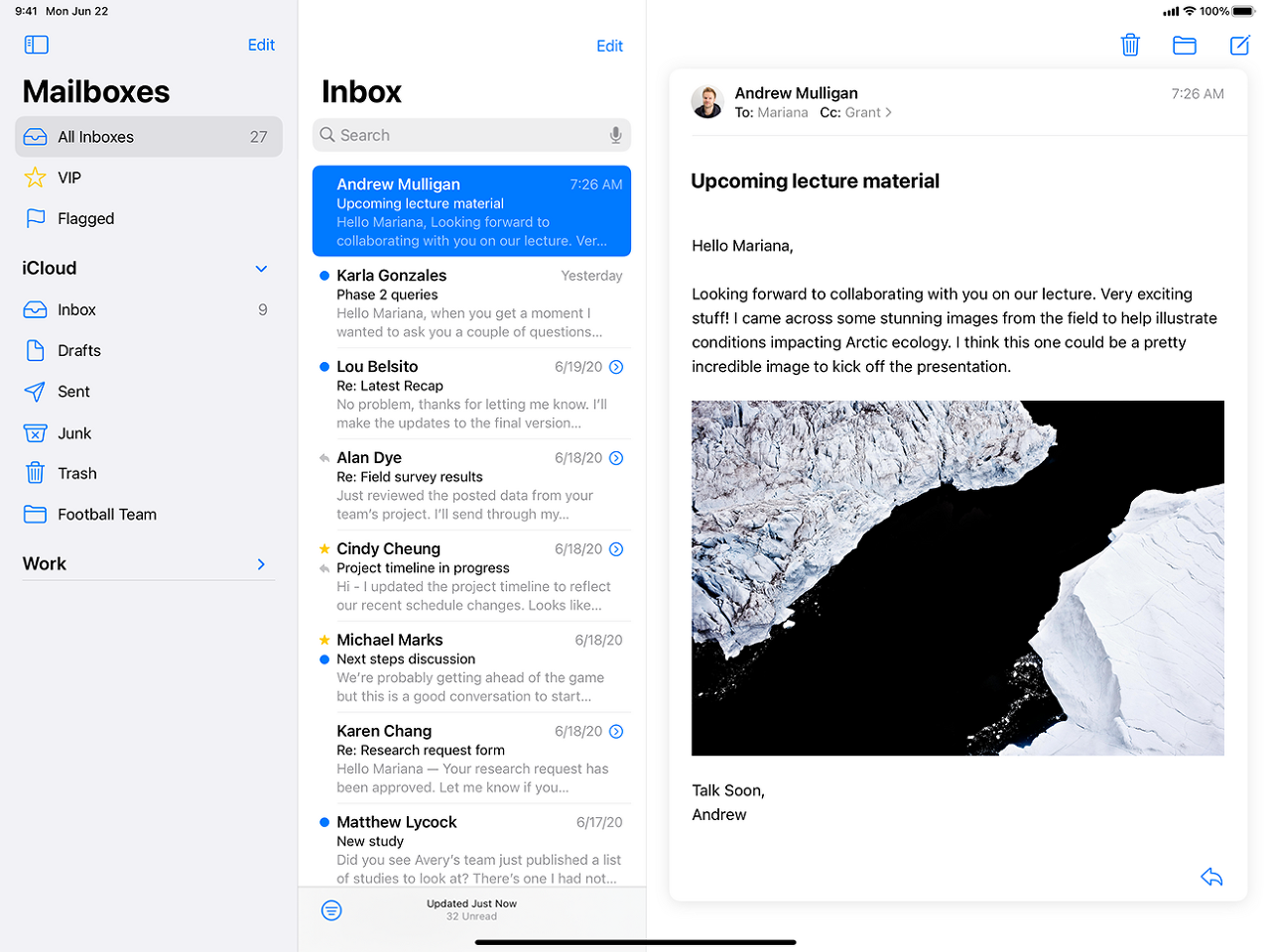
On iPad, use a split view instead of a tab bar. Split views provide the same quick navigation as tab bars while making better use of the large display. For guidance, see Split Views.
아이패드에선, 탭 바 대신 split view를 사용하세요. split view는 탭바와 같이 빠른 네비게이션을 제공하면서, 동시에 큰 화면을 더 잘 활용할 수 있게 합니다. Split Views 에서 가이드를 참고하세요.
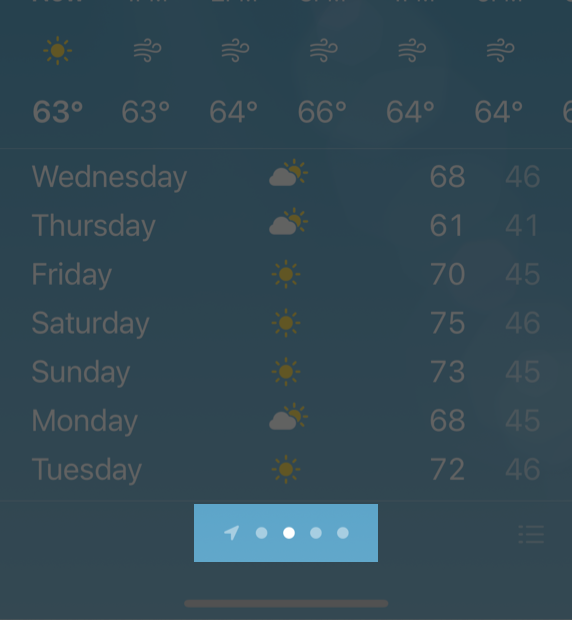
Use a page control when you have multiple pages of the same type of content. A page control clearly communicates the number of pages available and which one is currently active. The Weather app uses a page control to show location-specific weather pages. For specific guidance, see Page Controls.
같은 형태의 내용 페이지가 많은 경우 page control을 사용하세요. page control은 페이지의 수가 몇 개인지, 현재 사용중인 페이지는 어디인지 명확히 보여줍니다. 날씨 앱은 위치 맞춤 날씨 페이지를 보여주는데 사용합니다. 좀 더 자세한 가이드는 Page Controls 을 참고하세요.
TIP
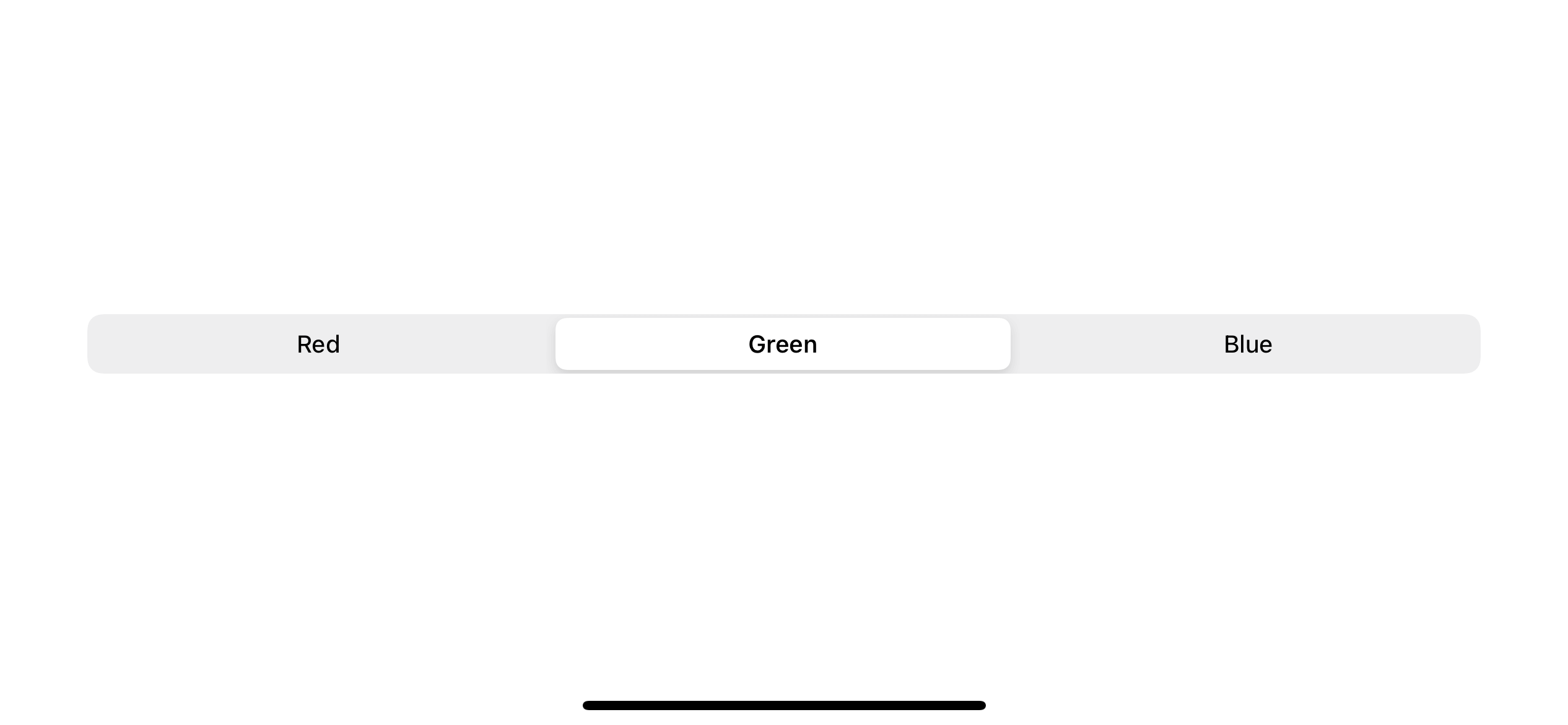
Segmented controls and toolbars don’t enable navigation. Use a segmented control to organize information into different categories. Use a toolbar to provide controls for interacting with the current context. For additional information on these types of elements, see Segmented Controls and Toolbars.
Segmented control과 toolbar는 내비게이션을 사용할 수 없도록 합니다. 정보를 다른 카테고리로 묶기 위해서 segmented control을 사용하세요. 현재 맥락과 상호작용하기 위한 control을 제공하기 위해 toolbar를 사용하세요. 이러한 요소들의 종류에 대해 더 많은 정보를 얻고 싶다면 Segmented Controls 과 Toolbars 를 참고하세요
'GDSC HUFS 3기 > iOS - App Architecture' 카테고리의 다른 글
| [AHIG] App Architecture - Settings (0) | 2022.05.15 |
|---|---|
| [AHIG] App Architecture - Accessing User Data (2/2) (0) | 2022.05.13 |
| [AHIG] App Architecture - Accessing User Data (1/2) (0) | 2022.05.13 |
| [AHIG] App Architecture - Loading, Modality (0) | 2022.05.05 |
| [AHIG] App Architecture - Launching, Onboarding (0) | 2022.05.03 |